No products in the cart.


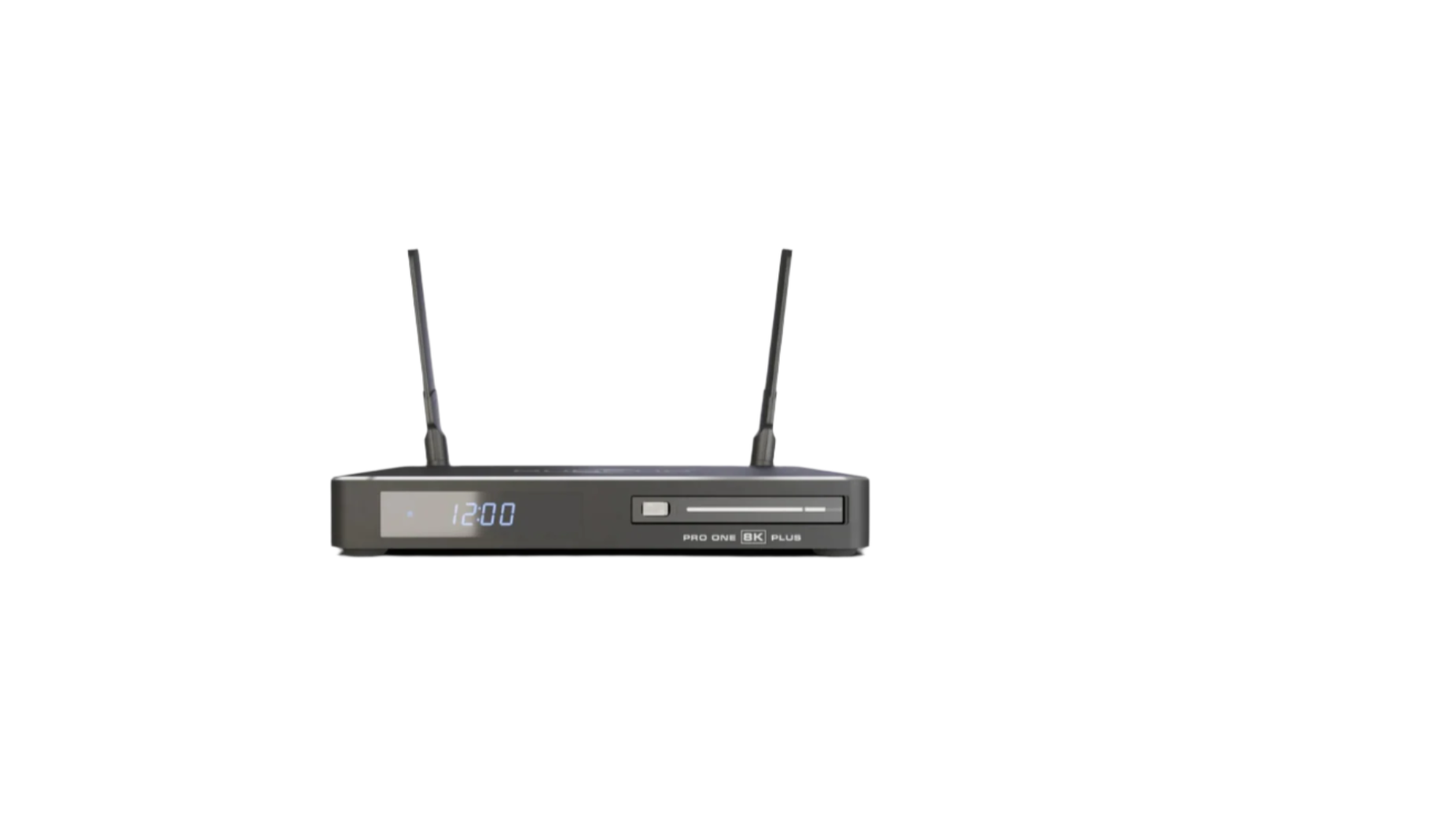


The Dune HD Pro One Plus is one of the most capable 4K/8K media players for home theaters, but like any advanced streaming box, users sometimes run into issues—especially when setting up high-end TVs, external audio systems, or complex networks.
This guide covers the most common problems, the exact settings to change, and best practices to ensure smooth, high-quality playback every time.
Some users report:
These usually come from HDMI handshake issues, incorrect TV settings, or cable limitations.
How to Fix It
Use a certified HDMI 2.1 cable (48Gbps): Older HDMI 2.0 cables cannot reliably handle 8K signals.
Manually set the output resolution in Dune settings: Settings → Video → HDMI Output Mode → Select 4K 60Hz or 8K 30Hz
Disable “Auto Framerate Switch” if your TV struggles: Some TVs glitch when switching frame rates rapidly.
On LG/Samsung/Sony TVs enable:
Update both TV firmware + Dune firmware: Compatibility improves dramatically after updates.
Because the Dune HD Pro One Plus is feature-rich, occasional firmware bugs can appear:
How to Fix It
Always update to the latest firmware: Settings → Firmware Update → Check Online
Turn off Beta features:: Settings → Misc → Disable Experimental Options
Reboot the box weekly: The system runs smoother with a clean memory state.
Use the built-in “Clean Cache” tool: Helps with performance and app stability.
Avoid sideloading unstable third-party apps: Stick to optimized apps available in the official store.
One of the most common issues is buffering during network playback, especially with high-bitrate 4K or BD-ISO files.
Causes include:
How to Fix It
Prefer wired Ethernet (Gigabit LAN): WiFi struggles with 4K remux files.
Gigabit LAN = ultra-smooth playback.
Optimize SMB for Windows NAS: On your NAS/device:
For Linux/TrueNAS users: Switch to NFS for best performance.
Don’t stream over WiFi if the bitrate is above 60Mbps: 4K REMUX files often exceed this.
On Dune settings: Settings → Network → Performance Mode ON
This includes:
How to Fix It
Set correct HDMI Color Depth & Range: Settings → Video → HDMI Color → 10-bit / Full Range
Enable audio passthrough: Settings → Audio → HDMI Audio → Bitstream / Passthrough
Supports:
Set HDR mode correctly:
If file doesn't play, disable hardware acceleration: Settings → Video → Hardware Acceleration OFF


Issues include:
How to Fix It
Disable HDMI CEC completely: If you use multiple devices or AVR: Settings → HDMI → CEC → OFF
This avoids conflicts like:
Replace IR batteries & check line-of-sight: IR requires direct visibility.
Switch remote mode to RF if available: RF/Bluetooth = faster response & no aiming required.
Video Settings
Audio Settings
Network Settings
Playback Settings
1. Why does my Dune HD Pro One Plus show a black screen?
Often caused by HDMI handshake issues. Try a certified HDMI 2.1 cable and enable “HDMI Enhanced Mode” on your TV port.
2. Why does HDR look washed out?
Set HDMI color to 10-bit and match your HDR format (HDR10 or Auto). Avoid forcing Dolby Vision on incompatible TVs.
3. How do I fix buffering?
Use wired gigabit Ethernet or switch SMB to NFS for high-bitrate files.
4. Why won't my remote control work?
CEC conflicts or IR interference are common. Disable CEC and use RF mode if available.
5. Should I use WiFi or Ethernet?
Always use Ethernet for 4K and BD-ISO playback. WiFi is not reliable for high-bitrate media.
The Dune HD Pro One Plus is a powerhouse media player — but only when configured properly.
By optimizing HDMI settings, choosing the right network mode, and managing firmware updates, you can eliminate nearly all common problems and enjoy a flawless home theater experience.
Check the product here.